Profile List
The profile list allows you to clearly organize and manage your profiles. You can group profiles by purpose by creating your own subfolders and sorting the profiles into them. Each profile can be activated or deactivated using the checkbox in front of its name. For all activated profiles, you can then create a copy preview or start a copy operation. All profiles are stored on the hard drive in the Profiles subfolder located in AllSync's application data folder.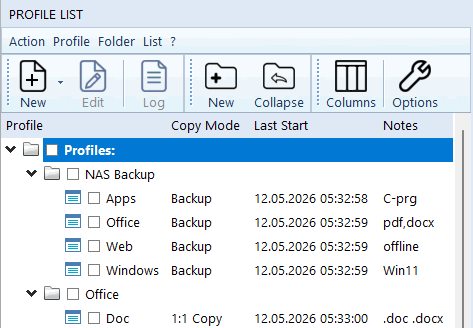
Profile List
The profile list consists of a table with four columns:| Column | Description |
|---|---|
| Profiles | Displays folders and profiles in a collapsible tree structure. This column is always visible and cannot be hidden. |
| Copy Mode | Displays the copy mode set for the profile. This column can be shown or hidden. |
| Last Run | Displays the time of the last copy operation with the respective profile. This column can be shown or hidden. |
| Notes | Displays the first line of the profile notes. This column can be shown or hidden. |
Menu bar
Action
- Create Copy Preview
Creates a copy preview with all activated profiles. - Create Copy Preview Without Profile Chaining
Creates a copy preview for all activated profiles without considering the profile chaining defined in the profile properties. - Create Copy Preview Without Action Icons
Creates a copy preview for all activated profiles showing only standard icons for files and folders. Icons for planned actions (e.g., copy, filter, delete) are not displayed. This preview is especially useful for checking folder structure and file contents – or when planning a custom copy operation where you manually define actions for files and folders. - Start Copy Operation
Starts the copy operation with all activated profiles. - Start Copy Operation Without Profile Chaining
Starts a copy operation with all activated profiles without considering the profile chaining defined in the profile properties.
Profile
- Create New Profile
Creates a new profile. - Create New Profile Using Assistant
Creates a new profile using the assistant. - Edit Profile Template
Opens the template for new profiles. - Edit Profile Properties
Opens the properties of the selected profile. - Rename Profile
Changes the name of the selected profile. - Copy Profile
Creates a copy of the selected profile. - Delete Profile
Deletes the selected profile from the profile list. - Show Profile Log
Displays the log of the selected profile. - Create Profile Shortcut
Opens the shortcut assistant with the selected profile. - Edit Profile Chaining
Opens the chaining manager with the selected profile.
Folder
- Create New Folder
Creates a new folder in the profile list. - Rename Folder
Changes the name of the selected folder. - Delete Folder
Deletes the selected folder from the profile list. - Expand All Folders
Opens all folders in the profile list. - Collapse All Folders
Closes all folders in the profile list. - Expand all folders with activated profiles
Opens only folders with activated profiles in the profile list.
List
- Adjust Column Width
Automatically adjusts all columns to fit their content. - Show Column 'Copy Mode'
Allows this column to be shown or hidden. - Show Column 'Last Run'
Allows this column to be shown or hidden. - Show Column 'Notes'
Allows this column to be shown or hidden. - Table Lines
Changes the display of lines between cells in the profile list.
The following options are available:- Show no lines
- Show only horizontal lines
- Show only vertical lines
- Show both horizontal and vertical lines
- Reload Profile List
Clears the current profile list and reloads all profile files from the profile folder. - Options
Opens the options for the profile list.
Context Menu
Profile
- Edit Profile Properties
Opens the properties of the profile. - Rename Profile
Changes the name of the profile. - Copy Profile
Creates a copy of the profile. - Delete Profile
Deletes the profile. - Show Profile Log
Displays the profile's log. - Create Profile Shortcut
Creates a shortcut for the profile using the shortcut assistant. - Edit Profile Chaining
Opens the profile chaining manager with the profile. - Create Screenshots of All Profile Properties
Opens the profile properties and creates screenshots of all menu sections. The images can be saved as BMP, JPG, or PNG. Make sure the window is large enough so all options are visible. - Open Profile Folder
Opens the profile's storage location in Windows Explorer.
Folder
- Create New Profile
Creates a new profile in the folder. - Create New Subfolder
Creates a new subfolder in the folder. - Rename Folder
Changes the name of the folder. - Delete Folder
Deletes the folder. - Create Screenshots of All Profile Properties in Folder
Opens the profile properties of all profiles in the folder and creates screenshots of all menu sections. The images can be saved as BMP, JPG, or PNG. Make sure the window is large enough so all options are visible. - Open Folder
Opens the folder in Windows Explorer.
Keyboard Shortcuts
Copy Preview:
- CTRL + Left-click on a profile
Creates a copy preview with the profile. - CTRL + Left-click on a folder
Creates a copy preview of all profiles in the folder.
Copy Operation:
- ALT + Left-click on a profile
Starts a copy operation with the profile. - ALT + Left-click on a folder
Starts a copy operation with all profiles in the folder.
Copy Profile:
- Hold down the CTRL key and drag the profile with the left mouse button onto a folder. Release the mouse button to create a copy of the profile in that folder.
Search
The search function allows you to search the following properties of all profiles for a specific text:The search can be customized with the following options:
- Case-sensitive
The search text must exactly match the spelling of the profile property. - Match entire string
The search text must fully match the profile property. - Restart search from beginning when end is reached
The search automatically jumps back to the beginning of the list when the end is reached.